
How Can I Upload My Website?
You have created a beautiful website that you would like to upload to your web hosting package. This is possible, there are various FTP programs ’s available for this. Our preference is FileZilla as it is free and easy to use.
In this manual we explain step by step how you can upload your website.
1. Download the latest version from the FileZilla website: www.filezilla-project.org
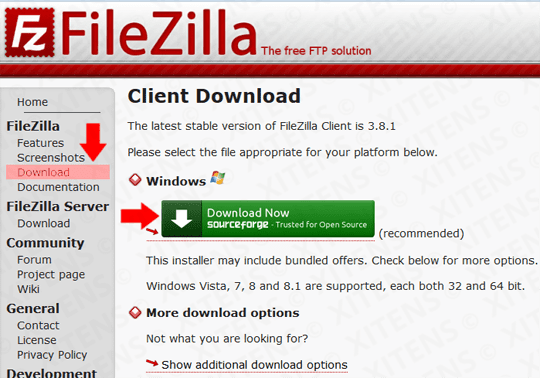
2. Install FileZilla FTP Client on your PC.
3. Now launch FileZilla from your desktop.

4. Then navigate to File / Site Management…
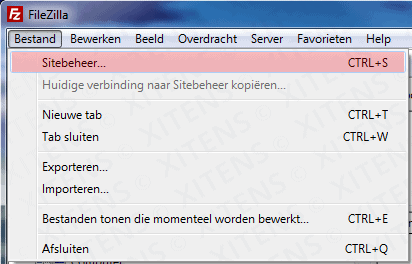
5. To connect, click on New site and enter your personal FTP details and then click on Connect.
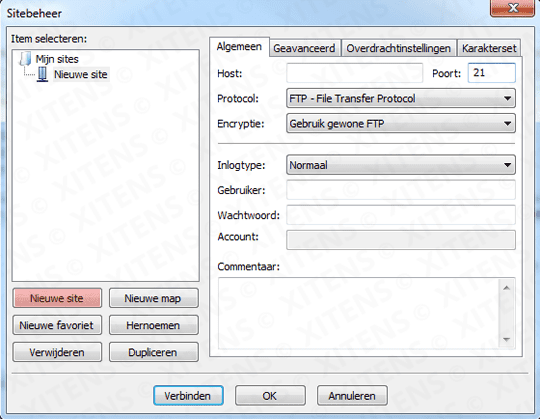
Host: ftp.yourdomain.com (or your own domain extension)
Poort: 21
Protocol: FTP File Transfer Protocol
Encryption: Use regular FTP
Logon type: Normal
User: Your username
Password: Your password
6. Now upload your website files from your PC ( the red area ) to your web server ( the green area ) in the /public_html folder. Or for multiple domains /domains/yourdomain.com/public_html
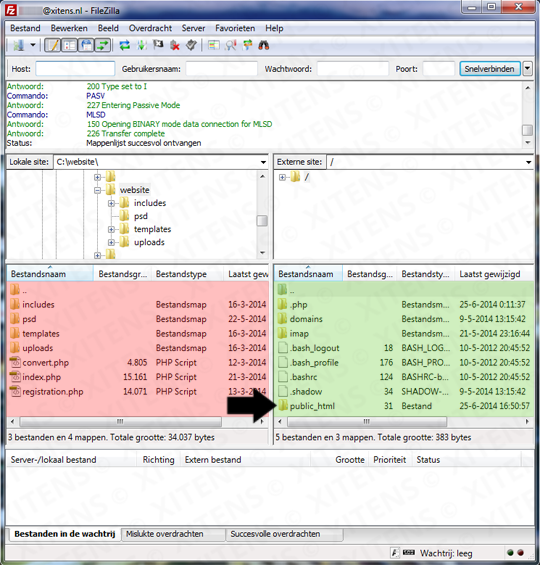
7. You have now successfully uploaded your website and can view it via the browser.